The cover is the one page a reader sees before they open the book — and it's produced by an entirely different set of rules from everything inside. Trim, bleed, spine, print colour, resolution: this is where a screen design meets the physical realities of a printing press. Here is what those rules are, and how to keep them from ambushing you.
New here? This is one article in a Gurugo Labs field series drawn from a client engagement to produce a traditional trilingual (Sanskrit · Tamil · English) devotional book — but it reads on its own. This article: the technical rules for designing a cover that prints correctly. Three terms you'll need: the trim is the final cut size of the cover; the bleed is artwork extended past the trim so a slightly-off cut leaves no white edge; the spine is the back edge where the cover wraps, its width set by the book's thickness.
A cover is a print-production object, not a picture
Everything so far has been about pages. A cover is different: it is a single piece of artwork destined for a printing press, and the press has requirements a screen never imposed on you. The good news is there are only a few of them, and once you know them the cover stops being mysterious.
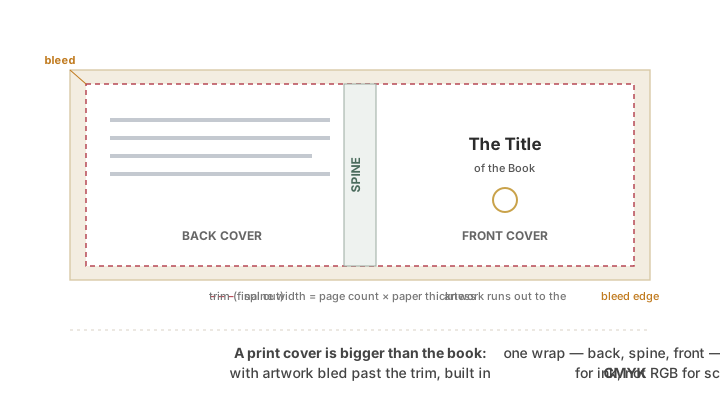
The first surprise is that a print cover is one continuous wrap, not just a front. Laid flat, it runs back cover — spine — front cover, all in one file, and the whole thing is larger than the finished book because of bleed. Design just the front in isolation and you'll be missing two-thirds of what the printer needs.
Trim, bleed, and spine
Trim is the size the cover will be cut to — the finished dimensions. It's your real canvas size.
Bleed exists because cutting is never perfectly precise. If your background colour or image stops exactly at the trim line, a cut that lands a hair inside leaves a thin white sliver along the edge. The fix is to extend any artwork that reaches the edge a few millimetres past the trim, into the bleed zone, so wherever the blade actually falls, there's still artwork there. You design slightly bigger than the book on purpose.
Spine is the wrap's back edge, and its width is not a guess: it's determined by the number of pages and the thickness of the paper. A thicker book has a wider spine. Get it wrong and the front artwork creeps around onto the spine or the back. You usually get the exact spine width from your printer (or their formula) once the page count and paper are settled — which is why the cover is finished last, after the interior is final.
The colour trap: your screen is lying to you a little
Here is the one that surprises everyone. Screens make colour with light — red, green, blue (RGB) — and can produce vivid, glowing colours. Printing presses make colour with inks — cyan, magenta, yellow, black (CMYK) — and simply cannot hit some of those bright screen colours. The result: a colour that looks brilliant on your monitor can print duller than expected. The classic victim is a bright yellow that comes back looking flat and golden.
The defence is to work and check in CMYK, not RGB, and to choose colours that print true. If a specific vivid colour matters, verify how it renders in CMYK before committing. A related physical factor: the paper or board and its finish change the result — a glossy coated board makes colours look richer and darker than the same ink on matte stock.
Resolution and the giant-file problem
Covers involve images, and images bring two linked issues: sharpness and file size.
For sharpness, raster images (photos, textures) need enough resolution at the size they're printed — the standard is about 300 DPI at the final placed size. Too little and the print looks fuzzy; but far too much is its own problem: it bloats the file enormously without improving the print.
That bloat is a real trap with cover art. It's easy to end up with a file hundreds of megabytes in size — or a PDF export that's absurdly large — because a huge, high-resolution image is embedded and carried at far more detail than 300 DPI needs. The cure is to downsample raster images to around 300 DPI at the size they actually appear, and to control the resolution at which any vector-to-raster conversion happens on export. Vector artwork stays razor-sharp at any size and is light; it's the embedded rasters that need watching.
How we solved it on the engagement
We built the cover as vector artwork in Inkscape — free, and a natural fit because vector stays crisp at any size and keeps the file light. Two problems from this article showed up in practice, and both had clean fixes.
First, the yellow. A yellow that looked vivid on screen was destined to print as a dull gold, because it was an RGB colour a press can't reproduce. We corrected it by specifying the yellow as a pure CMYK process value rather than trusting the screen colour, so the printed result matched the intent.
Second, the file size. The first PDF export of the cover came out enormous — a multi-tens-of-megabytes file — because high-resolution raster images embedded in the artwork were being carried at far more detail than print needs. We fixed it by resampling those images down to ~300 DPI at their placed size and setting the export's rasterization DPI sensibly, which collapsed the file to a fraction of its size with no visible loss. We also set the canvas to the exact trim size plus bleed, and sized the spine to the final page count and paper thickness, so the wrap matched the printer's specification. The lesson we'd pass on: on a cover, treat print colour and image resolution as first-class, because they are exactly where a screen-perfect design goes wrong on paper.
⚙️ For the hands-on reader
- Set your canvas to trim size + bleed on all four sides, and lay out back — spine — front as one file. Get the spine width from the printer's page-count formula.
- Work in CMYK and specify vivid colours (especially bright yellows) as process values; expect screen colours to lose punch in print.
- Keep raster images at ~300 DPI at placed size — downsample oversized images and control the export/rasterization DPI to avoid a bloated file.
- Prefer vector for logos and ornaments (sharp and light); watch embedded rasters for file-size blowups.
- Export a print-ready PDF with bleed, CMYK, embedded/outlined fonts; match the printer's specification.
Takeaways
- A cover is a print-production object: one wrap of back — spine — front, larger than the book.
- Trim is the cut size; bleed is artwork extended past it so mis-cuts leave no white edge; the spine width comes from page count and paper.
- Screens use RGB light, presses use CMYK ink — bright colours (notably yellow) can print duller; design and check in CMYK.
- Keep raster images near 300 DPI at placed size to stay sharp without ballooning the file; use vector where you can.
- Deliver a print-ready PDF: trim + bleed, calculated spine, CMYK, embedded fonts — matched to the printer's spec.